Android 10.1 car stereos offer a modern driving experience, combining navigation, music, and connectivity. This user manual guides you through setup and features.
What is an Android 10.1 Car Stereo?
An Android 10.1 car stereo is an in-car entertainment system powered by Google’s Android operating system, specifically version 10.1. Unlike traditional car stereos, these units function much like smartphones or tablets, offering a touchscreen interface and access to a wide range of applications via the Google Play Store.
These systems typically feature built-in GPS navigation, Bluetooth connectivity for hands-free calling and audio streaming, and USB ports for media playback. Models like the AMASE AUDIO 2DIN-AD27-001A provide a rotated touchscreen for enhanced usability. They integrate seamlessly into your vehicle, offering a smarter and more connected driving experience.
Key Features and Benefits
Android 10.1 car stereos boast numerous advantages. Enjoy seamless smartphone integration via Bluetooth, enabling hands-free calls and music streaming. Built-in GPS navigation eliminates the need for a separate device, offering real-time traffic updates. The Google Play Store grants access to countless apps, expanding functionality beyond basic audio.
Features like a rotated touchscreen (AMASE AUDIO) enhance usability. Regular system updates, similar to your smartphone, ensure optimal performance and security. These stereos transform your vehicle into a connected hub, providing entertainment, information, and convenience on every journey.
Initial Setup and Installation
Proper installation is crucial for optimal performance. This section details unboxing, the 2DIN-AD27-001A installation process, and essential wiring connections for your new stereo.
Unboxing and Package Contents
Carefully unpack your Android 10.1 car stereo. The box should contain the main unit, a power cable, an antenna adapter, a GPS antenna, a USB cable, and potentially RCA cables.
Also included is the 2DIN-AD27-001A installation manual, providing detailed guidance. Verify all listed components are present and undamaged. A rotated touchscreen is a key feature of the AMASE AUDIO model.
If any items are missing or appear damaged, immediately contact the retailer or AMASE AUDIO support. Retain the original packaging for potential returns or warranty claims. The user manual PDF (approximately 2.54MB and 19 pages) offers visual diagrams for reference.
Installation Guide (2DIN-AD27-001A)
Refer to the 2DIN-AD27-001A installation manual for detailed steps. Begin by disconnecting the vehicle’s negative battery terminal. Remove the existing car stereo using appropriate tools. Connect the provided wiring harness, ensuring correct matching of wires – power, ground, speakers, and antenna.
Securely mount the Android stereo into the 2DIN slot. Connect the GPS antenna for navigation functionality.
Double-check all connections before reconnecting the battery. The manual’s diagrams are crucial for accurate wiring. Improper installation can damage the unit or vehicle. Consult a professional if unsure; the PDF manual provides visual aid.
Wiring Diagram and Connections
The wiring harness connects power (12V DC), ground, speakers, antenna, and potentially a steering wheel control adapter. Refer to the 2DIN-AD27-001A manual’s diagram for precise color coding. Incorrect wiring can cause damage! Red is typically power, black is ground.
Speaker wires connect to corresponding channels (front, rear, subwoofer). The antenna provides radio reception. A CAN Bus connection enables vehicle data integration.
Ensure secure connections to prevent shorts or interruptions. Diagrams within the original PDF manual are essential for correct installation. Professional installation is recommended if you are unfamiliar with automotive wiring.
Understanding the User Interface
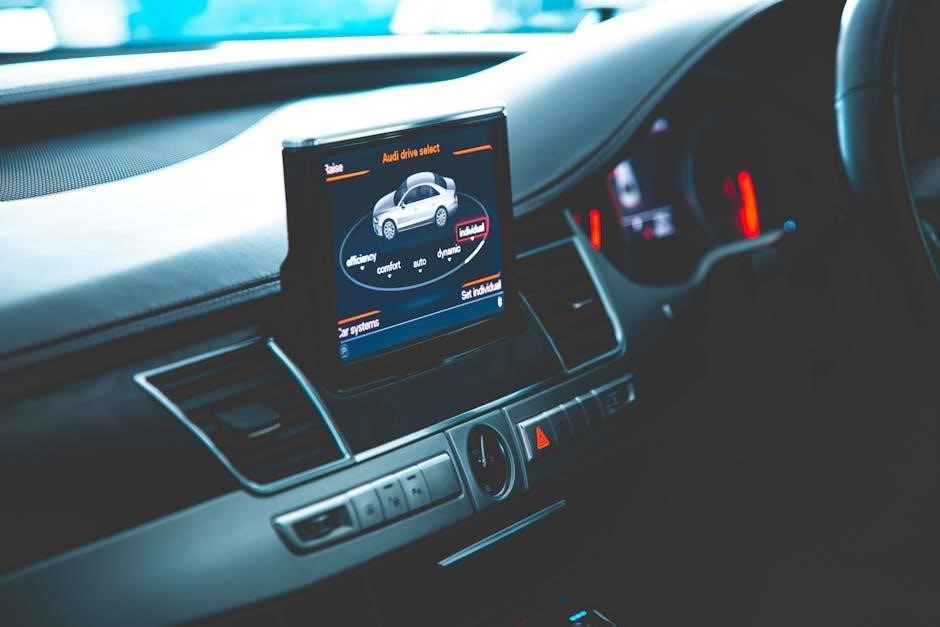
The Android 10.1 car stereo features a responsive touchscreen interface, offering access to apps, settings, and vehicle functions with intuitive navigation.
Home Screen Overview
The home screen serves as your central hub for accessing all features. It typically displays frequently used apps, customizable widgets, and a status bar providing essential information. You’ll find shortcuts for navigation, music playback, and radio functions readily available.
The layout is designed for easy touch interaction while driving. Customizable themes allow personalization of the visual experience. A quick settings panel, accessible with a swipe, provides fast access to brightness, volume, and connectivity options. The date and time are prominently displayed, alongside network and battery status indicators. Familiarize yourself with the arrangement for efficient operation.
Navigation Menu and Settings
Access the navigation menu by tapping the dedicated icon, usually located at the bottom of the screen. This opens a comprehensive list of system settings, application controls, and vehicle-related configurations. Within settings, you can adjust display brightness, sound equalization, and Wi-Fi/Bluetooth connections.
Explore options for customizing the home screen, managing installed applications, and configuring vehicle settings like CAN bus integration. The menu also provides access to system updates and a factory reset option. Detailed explanations for each setting are often available through integrated help features, ensuring optimal personalization and functionality.
Status Bar and Notifications
The status bar, typically located at the top of the screen, displays essential system information. This includes time, date, network connectivity (Wi-Fi/cellular), battery level, and active application indicators. Swipe down from the top to reveal the notification shade, showcasing alerts from various apps and system processes.
Notifications can be tapped to directly open the corresponding application or dismissed with a swipe. Quick settings toggles, accessible within the notification shade, allow for rapid adjustments to brightness, volume, and commonly used features. Customize notification preferences within the settings menu for tailored alerts.

Connectivity and Network Settings
Connect your Android stereo to networks via Wi-Fi, Bluetooth, or USB. These connections enable navigation, music streaming, and file transfers.
Wi-Fi Connection Setup
To connect your Android 10.1 car stereo to a Wi-Fi network, navigate to the Settings menu and select “Wi-Fi.” A list of available networks will appear. Choose your desired network and enter the password if prompted.

Ensure your network is functioning correctly before attempting to connect. Once connected, the stereo can access online services like navigation apps, music streaming, and software updates. A stable Wi-Fi connection enhances the overall user experience, providing faster data speeds and reliable access to online content. Remember that network service provider settings impact functionality.
Bluetooth Pairing and Usage
To pair a Bluetooth device, access the Settings menu on your Android 10.1 car stereo and select “Bluetooth.” Ensure your device is in pairing mode. The stereo will scan for available devices; select yours from the list.
You may be prompted to confirm a pairing code on both devices. Once paired, you can use Bluetooth for hands-free calling and audio streaming. Bluetooth connectivity allows seamless integration with smartphones and other compatible devices, enhancing convenience and safety while driving. Remember to check device compatibility for optimal performance.
USB Connectivity and File Transfer
Your Android 10.1 car stereo supports USB connectivity for various functions, including media playback and file transfer. Connect a USB drive or smartphone via the USB port. The stereo will recognize the connected device, allowing you to access files like music, videos, and photos.
To transfer files, ensure your device is set to file transfer mode (MTP). You can then browse the stereo’s storage from your computer. This feature enables easy loading of custom content and software updates. Supported file formats may vary; consult the specifications for details.
Core Applications and Functionality
This stereo features pre-installed apps for navigation, music, and radio. Enjoy seamless integration and a user-friendly experience for in-car entertainment.
Navigation App Setup and Usage
Your Android 10.1 car stereo comes equipped with a navigation application, offering turn-by-turn directions and real-time traffic updates. To begin, ensure a stable Wi-Fi or data connection is established. Launch the navigation app from the home screen and accept any required permissions, such as location access.
Input your desired destination using the on-screen keyboard or voice command functionality. The app will calculate the optimal route and provide audio and visual guidance. Explore settings to customize preferences like route avoidance, map views, and voice alerts. Regularly updating the navigation app ensures access to the latest maps and points of interest for a smoother journey.
Music Playback Options
Enjoy diverse music playback options with your Android 10.1 car stereo. Access music via Bluetooth from your smartphone, USB drives containing MP3/FLAC files, or built-in streaming apps. The system supports various audio formats, delivering high-quality sound. Utilize the equalizer settings to personalize the audio experience to your preferences.
Create playlists, shuffle tracks, and control playback directly from the touchscreen interface. Explore online music services for an expansive library. Seamlessly switch between sources for uninterrupted entertainment during your drive. The stereo’s robust audio processing ensures a clear and immersive listening experience.
Radio Functionality and Presets
Your Android 10.1 car stereo features a built-in FM/AM radio receiver for traditional broadcast listening. Easily tune into your favorite stations using the touchscreen interface or manual frequency input. The system supports RDS (Radio Data System) displaying station names and program information where available.
Save your frequently listened-to stations as presets for quick access. Customize the preset list to suit your preferences. Enjoy clear radio reception with the stereo’s enhanced antenna connectivity. Explore local stations and discover new content while on the road, providing a classic entertainment option alongside modern features.
System Updates and Maintenance
Regularly check for Android version updates to ensure optimal performance and access new features. Maintenance includes updates and occasional factory resets.
Checking for Android Version Updates
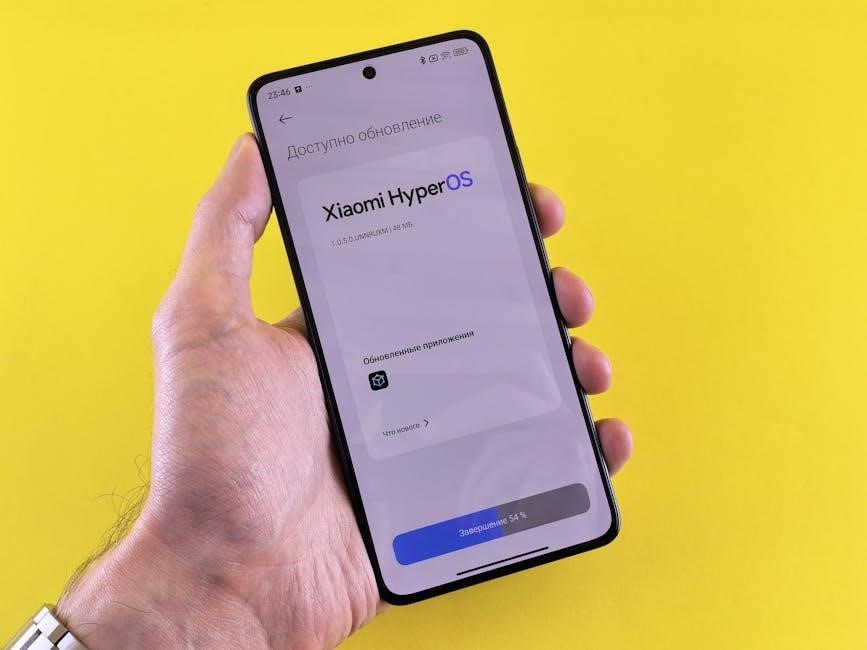
Keeping your Android 10.1 car stereo updated is crucial for security, stability, and accessing the latest features. To check for updates, navigate to your device’s Settings application. Locate the About phone or About tablet section – the exact wording may vary slightly depending on your specific model.
Within this menu, tap on Android version. The system will automatically check for available updates. If an update is found, you’ll be prompted to download and install it. Remember that update schedules can vary based on your device manufacturer and mobile carrier. Pixel phones have a dedicated update schedule available online.
Performing a System Update
Once an Android system update is available, select the “Download” option. Ensure your car stereo has a stable power source during the download and installation process – interruption could cause issues. The system may reboot automatically several times during the update.
Do not turn off the device or interrupt the process. The update time varies depending on the size of the update and your connection speed. After installation, verify the updated Android version in the Settings menu under About phone/tablet. Regularly checking for updates ensures optimal performance and security for your Android 10.1 car stereo.
Factory Reset and Troubleshooting
A factory reset restores your Android 10.1 car stereo to its original settings, erasing all personal data. Use this as a last resort for persistent issues. Access the reset option through Settings > System > Reset options. Before resetting, back up important data if possible.
For minor glitches, try restarting the stereo. If problems persist, consult the online help center for Android or the AMASE AUDIO support resources. Diagrams and detailed troubleshooting steps may be available in the original PDF user manual for model 2DIN-AD27-001A.
Advanced Settings and Customization
Explore detailed options for display brightness, sound equalization, and vehicle integration via CAN Bus settings for a personalized experience.
Display Settings and Brightness
Adjusting Display Settings: Access the display settings through the main settings menu to customize your viewing experience. You can modify screen resolution, color calibration, and font sizes to suit your preferences. Explore options for day and night modes, automatically adjusting brightness based on ambient light conditions.
Brightness Control: Fine-tune the screen brightness using the dedicated slider. Ensure optimal visibility during both daytime and nighttime driving. Consider enabling auto-brightness for a seamless transition between lighting environments. Lowering brightness conserves battery life and reduces eye strain, enhancing overall driving comfort. Experiment with different settings to find your ideal balance.
Sound Settings and Equalizer
Audio Customization: Dive into the sound settings to personalize your audio experience. Adjust volume levels for various sources – media, navigation, and phone calls. Explore pre-set equalizer modes like Rock, Pop, Classic, or Jazz for instant sound enhancements. For audiophiles, the custom equalizer allows precise control over individual frequency bands.
Equalizer Adjustments: Fine-tune the bass, mid-range, and treble to match your musical taste and vehicle acoustics. Utilize the loudness feature for increased volume at lower speeds. Explore options for surround sound and virtualizers to create a more immersive listening environment. Experiment to achieve optimal sound clarity and balance.
Vehicle Settings and CAN Bus Integration
CAN Bus Interface: Your Android stereo integrates with your vehicle’s CAN Bus system, enabling features like steering wheel control, parking sensor display, and climate control information on the screen. Proper CAN Bus integration requires correct settings within the stereo’s vehicle settings menu.
Vehicle Parameter Setup: Access the vehicle settings to configure parameters specific to your car model. This includes selecting the correct vehicle type, adjusting parking sensor sensitivity, and enabling steering wheel control functions. Incorrect settings may result in inaccurate information or malfunctioning features. Consult your vehicle’s manual for specific CAN Bus compatibility details.
Troubleshooting Common Issues
This section addresses frequent problems like freezing, Bluetooth connectivity, and navigation errors. Refer to these solutions for a smoother Android stereo experience.
Stereo Freezing or Crashing
If your Android 10.1 car stereo freezes or crashes, begin by performing a soft reset – press and hold the power button until the unit restarts. Avoid prolonged use of multiple apps simultaneously, as this can strain system resources. Ensure sufficient storage space is available; a full memory can cause instability.
Check for available system updates, as these often include bug fixes and performance improvements. If the issue persists, a factory reset (refer to the ‘Factory Reset’ section) might be necessary, but remember this will erase all personal data. Contact customer support if problems continue after these steps, providing the model number (2DIN-AD27-001A) for assistance.
Bluetooth Connection Problems
Experiencing Bluetooth connection issues? First, ensure Bluetooth is enabled on both your stereo and mobile device. Verify your device is within range – typically around 33 feet. Remove any previously paired devices from both the stereo and your phone, then re-pair them.
Check your phone’s Bluetooth settings for compatibility issues. Sometimes, restarting both devices can resolve connection glitches. If problems persist, clear the Bluetooth cache within the stereo’s settings menu. Ensure no other Bluetooth devices are interfering with the connection. Consult the stereo’s manual for specific troubleshooting steps.
Navigation App Errors
Encountering errors within your navigation app? First, confirm a stable internet connection via Wi-Fi or mobile data. Ensure the navigation app is updated to the latest version through the Google Play Store. Clear the app’s cache and data within the stereo’s settings; this often resolves minor glitches.
Verify your GPS signal is strong – obstructions can interfere. If the issue persists, try a different navigation app to isolate the problem. A system reboot of the Android stereo can also help. Check for available system updates, as these often include bug fixes.